Using LevelFour
Commitments
Your AWS Reserved Instances and Savings Plans in one place, with how much of each you use and what expires next.
Open Commitments in the dashboard sidebar, then Reserved Instances or Savings Plans. Both pages read the commitments on your connected AWS accounts. Other providers show as Soon in the provider picker.
The summary strip
| Card | What it shows |
|---|---|
| Reservations or Plans | How many you hold, across how many services or plan types, and what they commit you to a month |
| Saved vs on-demand | What your commitments save a month against on-demand prices, and how far below on-demand that puts you |
| Unused | Capacity you pay for and do not use, a month, beside the utilization rate. At full utilization it reads saturated |
| Expiring in 30 days | How many end within 30 days. View filters the table to them |
Services and plan types
On Reserved Instances, a tab per service narrows the page to EC2, RDS, ElastiCache, Redshift, OpenSearch, Elasticsearch (legacy) or MemoryDB. A tab notes when something on that service expires within 30 days.
Utilization and coverage
Utilization is how much of the capacity you bought is in use. Coverage is how much of the eligible usage a commitment pays for. The page shows both per service for reservations, and per plan type for Savings Plans, which AWS measures as one utilization rate rather than separate CPU and memory figures.
Utilization over time charts the daily figures over one, three, six or twelve months.
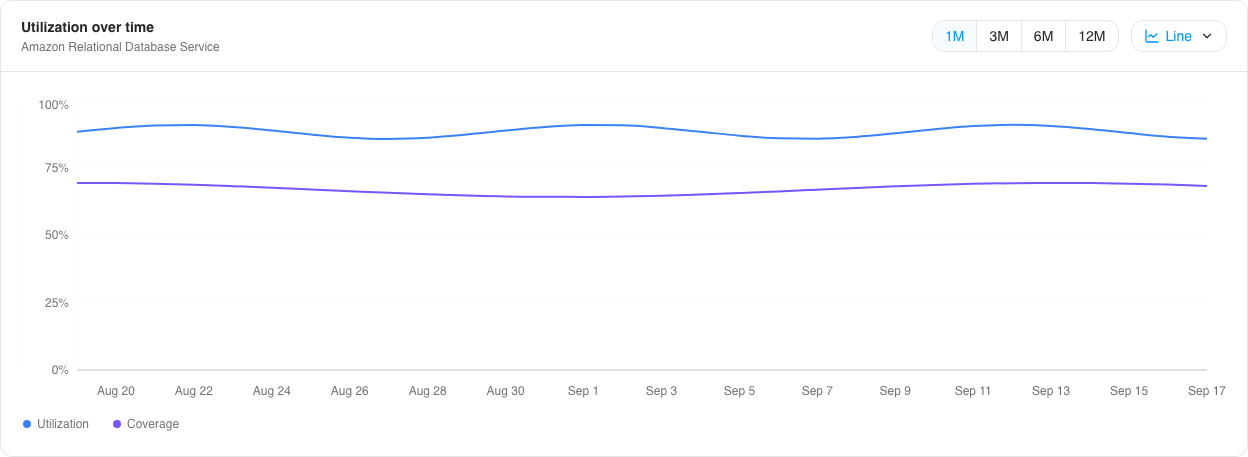
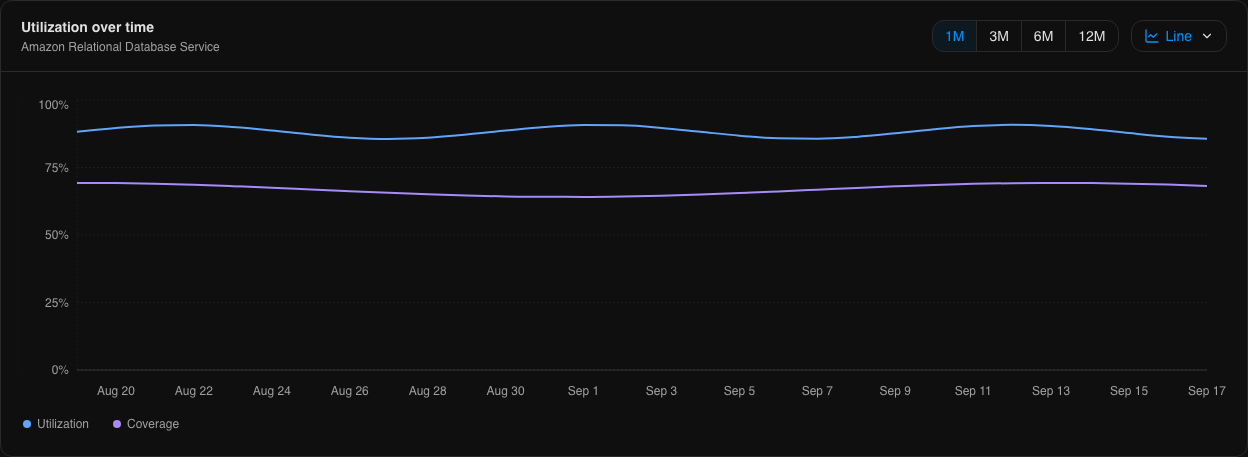
Utilization and coverage are measured across every service, so they stay the same when you pick a service tab.
The table
- The date control keeps the commitments that were in force at any point in the window you pick.
- Grouped by groups rows by service or plan type, account, region, status or payment option.
- Columns shows, hides and reorders columns.
- More filters narrows by account, status, payment option, region, term, tag, service and the attributes each service adds, such as engine, offering class or instance family.
Each row carries a status:
| Status | Meaning |
|---|---|
| Active | Running |
| Expiring | Ends within 30 days |
| Queued | Bought, and starts on a later date |
| Payment pending | Waiting on the payment AWS takes at purchase |
| Payment failed | The payment failed, so the commitment never ran |
| Retired | No longer running, usually because its term ended |
| Returned | A Savings Plan handed back to AWS within its return window |
Commitment detail
Select a row to open the commitment. The header lists its service, instance class, quantity, account, region, rate, payment option and dates, with Open in AWS Console. Two panels sit below it:
- Renewal prices what replacing it would cost, while a renewal can still be placed. See Renewing a commitment. At any other time this panel is Contract: the term, what is left of it, and the pricing, with Compare with on demand
- Metrics charts this commitment's utilization, and the coverage of all your reservations on its service
The Status & Logs tab follows a renewal's purchase once one is approved.
Expiring reservations
When reservations are about to end, a bar at the top of Reserved Instances names them, with Review to open the commitment it names. The Reserved Instances entry in the sidebar carries a count of the ones expiring within 30 days.
From other surfaces
- The MCP server reads the same position through
get-commitment-overview,list-commitments,get-commitment-utilizationandget-commitment-coverage, and your effective savings rate throughget-commitment-savings-rate. See Tools l4 commitmentsreads coverage, utilization and what expires from a terminal